
How to add an integration
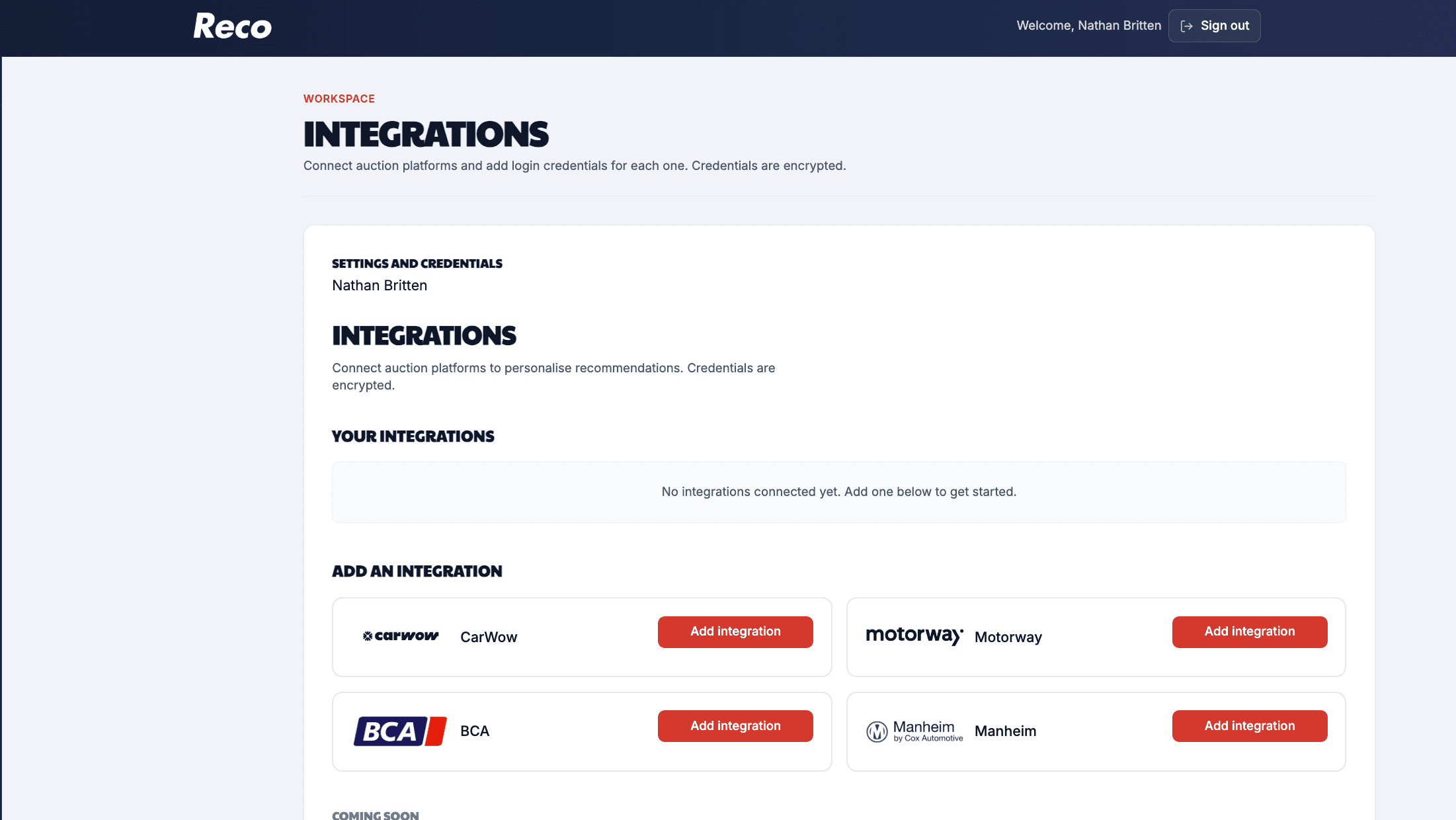
Connecting your buying platforms is the first step to getting personalised recommendations. Reco supports CarWow, Motorway, BCA, and Manheim. Your login credentials are encrypted and stored securely — we use them only to pull your purchase history and surface live listings.
Once connected, Reco syncs your latest purchases in the background. The first sync pulls your most recent 40 purchases per platform; your full buying history syncs overnight. Recommendations are usually ready within a few minutes of your first successful connection.
Option A: Setup wizard (recommended for new users)
When you sign in for the first time without any platforms connected, Reco opens the setup wizard automatically. You can also open it anytime from Settings → Integrations or by opening the setup wizard.
Wizard steps
- Step 1: Connect your auction platforms — Connect the platforms you typically buy from. Reco pulls your latest purchases to build your first recommendations — ready in just a few minutes. Click Get started, or Set up later if you want to skip for now.
- Add each platform — Reco walks you through CarWow, Motorway, BCA, and Manheim one at a time. For each, choose Yes, add or No, skip. You can always add skipped platforms later.
- Enter credentials — Provide your username or email and password for that platform. Click Continue to save and move to the next platform.
- Step 2: Pulling your recent purchases — Reco learns from your recent purchase history (usually under two minutes). Track sync progress per platform, or close the wizard — we'll email you when recommendations are ready. When all jobs finish, click Complete wizard.
If you dismiss the wizard
Choosing Set up later closes the wizard and shows a reminder banner on your next visit. You can reopen the setup wizard from that banner or from Settings → Integrations.
Option B: Add an integration after the wizard
Already completed the wizard, or prefer to add platforms manually? Use the Integrations settings page.
- Sign in and go to Settings → Integrations (plug icon in the sidebar).
- Scroll to Add an integration.
- Click Add integration on the platform you want (CarWow, Motorway, BCA, or Manheim).
- Enter your username or email and password in the expanded form.
- Click Save [Platform].
Your integration appears under Your integrations. You can Edit credentials anytime (leave the password blank to keep the current one) or Remove integration if you no longer need that platform.
To reopen the full wizard at any time, open the setup wizard.
Plan limits
How many platforms you can connect depends on your plan. If you hit your limit, you will need to upgrade before adding another.
| Plan | Platforms |
|---|---|
| Essential | 1 |
| Growth | 3 |
| Enterprise | Unlimited |
See how to manage your subscription for upgrading, downgrading, and when changes take effect. You can also compare plans on our pricing page.
Troubleshooting
Verifying your login
After saving credentials, a platform shows Verifying… while Reco checks your login. This usually takes a minute or two. Your Recommendations page stays empty until at least one platform is verified.
Login failed
If you see Login failed, your username or password may be incorrect, or the platform may have changed its login requirements. Click Edit credentials, re-enter your details, and save again.
Still stuck?
Double-check you are using the same login you use on the platform's own website. BCA and Manheim use email login; CarWow and Motorway use username.
What happens next
Once at least one platform is connected and verified:
- Reco builds recommendations from your purchase history.
- Your daily shortlist appears on the Recommendations page.
- You can set buying rules to exclude stock you never want to see.
Next steps
- How to add a buying rule — filter your shortlist with plain-English rules
- How to refine your results — use thumbs up and down to improve recommendations over time
Need help? If you are logged in, open Need help? in the sidebar and message our team. If you are not logged in, email team@recoengine.co.uk.